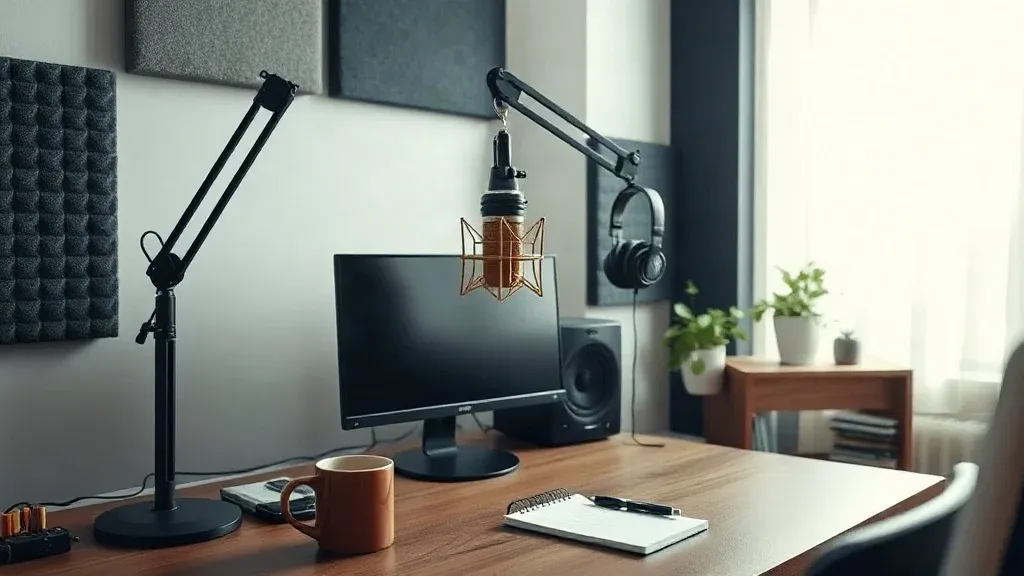
Direct Sound Matters Most: The closer your mic is to your mouth and the more soft surfaces around you, the cleaner your audio will be—even in a regular, untreated room.
Recording clean audio at home in an untreated room is possible if you focus on capturing more of your voice and less of the room. With the right setup and a few practical steps, you can avoid echo, boxy sound, and unwanted noise—no expensive studio required.
What You Need to Record Clean Audio at Home
- Cardioid microphone (USB or XLR)
- Pop filter
- Headphones (for monitoring)
- Soft materials: blankets, pillows, duvets, or a closet with clothes
- Quiet, furnished room (avoid kitchens and hallways)
- Recording software (DAW or podcast app)
See Best gear for solo creators for microphone and headphone ideas.
1. Prepare Your Room and Test for Echo
1. Pick the best room: Choose a small, carpeted or furnished room. Bedrooms with beds, curtains, and clothes work well. Avoid rooms with bare walls or lots of hard surfaces.
2. Clap test: Stand in the spot where you’ll record and clap loudly. If you hear a metallic ring or flutter echo, add soft materials (blankets, duvets, pillows) to absorb reflections. Focus on covering walls and corners near you.
3. Create a vocal booth: Hanging a blanket behind you or recording in a closet full of clothes can dramatically reduce reflections.
A simple setup—such as draping a duvet over a clothes rack behind your recording spot—can make a big difference. Even a few cushions stacked around your mic area will help. The goal is to break up hard, parallel surfaces that bounce sound back into the microphone.
2. Set Up Your Microphone and Position Yourself
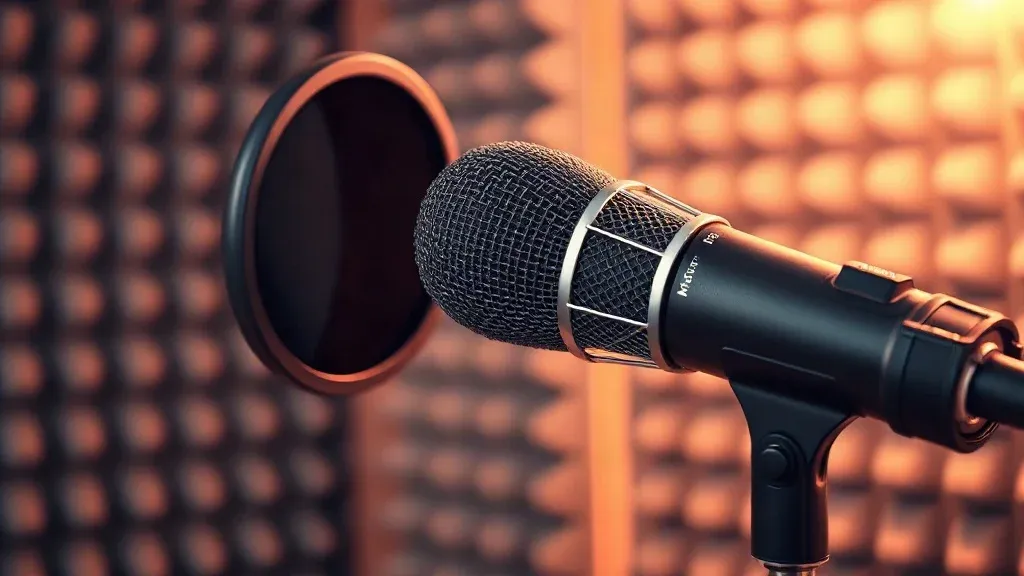
1. Mic placement: Use a cardioid mic and position it 4–8 inches (about a hand’s width) from your mouth. Stay off-center in the room and avoid corners.
2. Orientation: Point the mic toward your mouth and away from reflective surfaces like windows or mirrors. Place soft materials behind the mic if possible.
3. Pop filter: Use a pop filter to reduce plosives and keep a consistent distance from the mic.
4. Monitor with headphones: Listen through headphones, not laptop speakers, to judge your audio quality accurately.
For more on solo creator setups, see The 1-Person YouTube Studio Stack.
If you’re recording video as well, frame your shot so that any visible blankets or duvets look tidy. For audio-only work, prioritize function over appearance.
3. Control Noise and Set Levels
1. Remove noise at the source: Turn off fans, air conditioning, and computers if possible. Close windows and silence phones.
2. Mic distance: Don’t back away from the mic to avoid pops—this lets in more room sound. Stay close and use your pop filter.
3. Set gain: Aim for recording peaks around –12 to –6 dBFS. Too high causes clipping; too low means you’ll boost noise later.
4. Record room tone: Capture a few seconds of silence before you start speaking. This helps with noise reduction and gating in post-production.
If you’re in a noisy environment, try recording at a time when outside noise is lowest. Even small changes, like closing a door or using a thick rug, can help reduce unwanted sounds.
4. Light Processing and Post-Production
1. High-pass filter: Apply a gentle high-pass filter (around 70–120 Hz) to remove low-frequency rumble or proximity effect. Avoid heavy processing while recording.
2. Use room tone as a noise print: In editing, use your recorded room tone as a noise print for spectral noise reduction. This can help remove steady background noise without harming your voice.
3. Edit and export: Use tools like Descript for editing, or see Batch Recording: Make a Month of Content in Two Days for workflow tips.
Light processing is usually enough if you’ve recorded clean audio. Over-processing can make your voice sound unnatural or introduce artifacts. Always compare your edited audio to the original to make sure you’re improving, not harming, your sound.
Common Problems and How to Avoid Them
- Echo or boxy sound: Usually caused by hard, parallel walls. Add more soft materials or move to a different spot.
- Too much room sound: Move closer to the mic and increase the amount of absorption around you.
- Plosives and sibilance: Always use a pop filter and keep your mouth slightly off-axis from the mic.
- Gain issues: If your audio distorts, lower the input level. If it’s too quiet, raise it—but not so much that you hear hiss or hum.
- Forgetting room tone: Always record a few seconds of silence. This makes noise reduction much more effective.
If you’re still hearing problems, try recording a short test and listening back with headphones. Adjust your setup and repeat until you’re satisfied with the sound. Small tweaks—like moving a pillow or adjusting your mic angle—can have a big impact.
Quick Reference Table
| Step | What to Do |
|---|---|
| Choose a room | Small, carpeted, furnished |
| Test for echo | Clap and listen; add soft materials if needed |
| Mic placement | 4–8 inches from mouth, off-center |
| Reduce noise | Turn off devices, close windows |
| Record room tone | Capture silence before you start |
| Set gain | Peaks at –12 to –6 dBFS |
| Light processing | High-pass filter, gentle noise reduction |
For more content creation tips, see How to Build a Reliable Solo Podcast Recording Workflow.
Tips for Different Solo Creator Setups
- Podcasting: Prioritize voice clarity and minimize room reflections. Recording in a closet or with blankets behind you can make a big difference.
- Voiceover work: Consistency matters. Use the same setup each time to keep your sound uniform across projects.
- YouTube videos: If you’re on camera, try to keep soft materials out of frame or use decorative options like curtains or bookshelves to break up reflections.
- Online courses or webinars: Test your audio with a short sample before going live. Use headphones to check for background noise or echo.
Every solo creator’s space is different, but the fundamentals—close mic technique, soft surfaces, and noise control—apply everywhere. For more on building your solo creator workflow, see Batch Recording: Make a Month of Content in Two Days and Best gear for solo creators.